
Wi-Fi Troubleshooting: Tools and Metrics for 802.11ax and 6E Networks
As Wi-Fi networks evolve with Wi-Fi 6 (802.11ax) and Wi-Fi 6E, troubleshooting requires updated tools and knowledge. Whether you’re a network administrator or an end-user dealing with connectivity issues, understanding key RF metrics and using the right tools can make all the difference. This guide covers essential metrics and tools for diagnosing Wi-Fi issues across all major platforms—updated for modern standards.
Key Wi-Fi Metrics Explained
Before diving into tools, it’s crucial to understand the metrics that define Wi-Fi health:
- Channel: Determines which radio frequency the AP uses to transmit information. Always set by the AP.
- Band: The frequency used by the client to connect to the AP—2.4 GHz, 5 GHz, or 6 GHz (Wi-Fi 6E).
- RSSI (Received Signal Strength Indicator): Measures how well a client “hears” a signal from the AP. For Wi-Fi 6/6E, aim for -65 dBm or higher for optimal performance.
- Noise: Measures how much radio noise is interfering with the RSSI signal.
- SNR (Signal-to-Noise Ratio): The difference between signal and background noise. For Wi-Fi 6, SNR ≥ 25 dB is recommended for higher MCS indices.
- TX Rate: The speed of data transmitted between AP and client.
- PHY Mode: The wireless protocol used, according to IEEE 802.11 standards.
- MCS Index: Modern Wi-Fi 6 supports up to MCS 11 (1024-QAM modulation), compared to Wi-Fi 5’s MCS 9. Higher MCS = faster speeds but requires stronger signals.
- NSS (Spatial Streams): Wi-Fi 6 supports up to 8 spatial streams (though most client devices use 2–4).
Note: Visual signal bars on devices are misleading—they don’t reflect technical metrics like SNR or MCS. Always use dedicated tools for accurate diagnostics. Signal quality also depends on the antenna and transmit power of the client device (e.g., iPhone 6 vs. iPhone 10).
Windows Tools
Native Commands
- netsh wlan show interfaces
Shows real-time RF metrics, including PHY mode, channel, RSSI, SNR, and MCS index. - netsh wlan show wirelesscapabilities
Displays spatial streams. - netsh wlan show wlanreport
Generates a comprehensive HTML report (requires admin rights).
Third-Party Tools
- Wi-Fi Analyzer
Visualizes channel congestion, RSSI, and interference. - inSSIDer
Advanced spectrum analysis for enterprise environments; supports 6 GHz band scanning. - Acrylic Wi-Fi
Real-time channel utilization and interference mapping. - Wi-Fi explorer PRO
Advanced Wi-Fi scanning, spectrum analysis integration, remote sensor support, customizable columns, filtering, heatmaps, supports Wi-Fi 4/5/6/6E/7, Zigbee integration, CSV/PCAP import/export.
macOS Tools
Native Tools
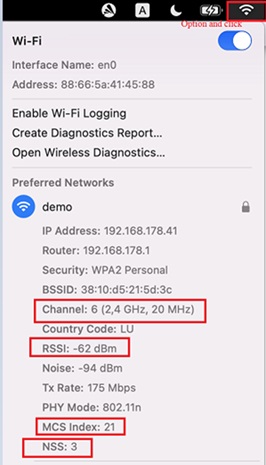
- Hold down the Option key and click the Wi-Fi icon for detailed RF stats.
- Terminal Command:
sudo /System/Library/PrivateFrameworks/Apple80211.framework/Versions/A/Resources/airport -I
Provides comprehensive RF health data.
Third-Party Apps
- NetSpot
Site survey tool with heatmaps for Wi-Fi 6E environments. - iStumbler
Open-source scanner for 2.4/5/6 GHz bands. - WiFi Explorer Pro
Advanced scanning, spectrum integration, remote sensors, Zigbee, CSV/PCAP import/export.
iPhone & iPad Tools
Built-in Options
- Airport Utility App
Can show RSSI after enabling Wi-Fi scan (client permission required). SNR, NSS, and MCS are not available due to Apple restrictions.
Third-Party Solutions
- Network Analyzer
Limited RF data (RSSI only). - NetAlly AirCheck G3
Connect via USB-C to iPhone for full RF diagnostics, including spectrum analysis and 6 GHz band scanning.
Android Tools
Built-in Options
- No native applications or command line are available to monitor RF quality. Basic stats (RSSI, channel) may be available in developer options.
Third-Party Apps
- Wi-Fi Analyzer
Free app showing channel congestion, RSSI, and interference. - Fing
Network scanner for identifying connected devices and signal quality. - NetAlly AirCheck G3
Connect via USB-C for spectrum analysis, channel utilization, and 6 GHz diagnostics.
Professional Tools
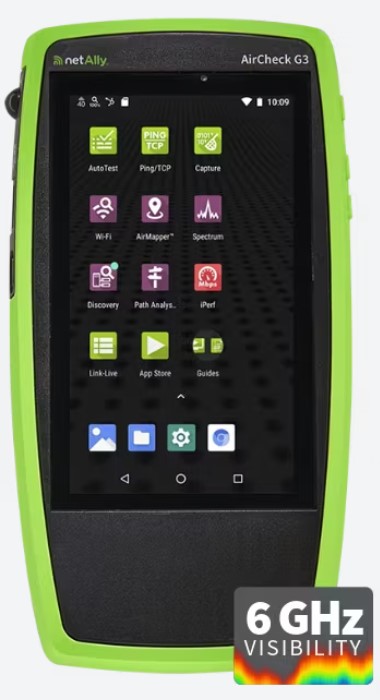
NetAlly AirCheck G3
- Supports Wi-Fi 6/6E: Scans 2.4/5/6 GHz bands with real-time spectrum analysis.
- Key Features: Interference identification, channel utilization, noise floor, throughput/latency testing, works with all major OS via USB or Wi-Fi. Get a demo from ITNET.
WiFi Explorer Pro
- Platform: macOS, Windows
- Features: Advanced Wi-Fi scanning, spectrum analysis integration, remote sensor support, customizable columns, filtering, heatmaps, supports Wi-Fi 4/5/6/6E/7, Zigbee integration, CSV/PCAP import/export.
Hamina Wireless
- Platform: Web-based (browser), iOS, macOS
- Features: Predictive design, 2D/3D heatmaps, AI-assisted wall/object modeling, multi-band support (Wi-Fi 6E/7, BLE, Zigbee, EnOcean), live troubleshooting, on-site survey kit (with Oscium Nomad), spectrum analysis, vendor integration, PDF/web reporting.
Ekahau
- Platform: Windows, macOS, iOS, Android
- Features: Predictive design, real-time site surveys, spectrum analysis (with Sidekick 2), cloud collaboration, advanced reporting, multi-band support (Wi-Fi 6/6E/7), automatic wall detection, mobile survey/analyzer apps.
Best Practices for Modern Wi-Fi Troubleshooting
- Start with native tools for quick checks (e.g., netsh on Windows, airport on macOS).
- Use third-party apps for visualizations (Wi-Fi Analyzer, NetSpot, WiFi Explorer Pro).
- For enterprise environments, deploy NetAlly AirCheck G3, Ekahau, or Hamina for spectrum analysis and 6 GHz validation.
- Always check channel congestion: In 2.4 GHz, use channels 1, 6, or 11. In 5/6 GHz, prioritize less crowded channels.
- Verify SNR and MCS: For Wi-Fi 6, ensure SNR ≥ 25 dB and MCS ≥ 9 for reliable high-speed connections.
Comparison Table: Modern Wi-Fi Troubleshooting Tools
| Tool | Platform(s) | Key Features | 6 GHz/6E Support | Spectrum Analysis | Survey Hardware | Price (Indicative) |
|---|---|---|---|---|---|---|
| WiFi Explorer Pro | macOS, Windows | Advanced scanning, spectrum integration, remote sensors, Zigbee, CSV/PCAP | Yes | Yes (integration) | No | $150.99–$180.99 (license) |
| Hamina Wireless | Web, iOS, macOS | Predictive design, 2D/3D heatmaps, live troubleshooting, vendor integration | Yes | Yes (with device) | Oscium Nomad | $980–$1,560/yr + $1,710 HW |
| Ekahau | Win, macOS, iOS, Android | Predictive design, real-time survey, spectrum, cloud, mobile apps | Yes | Yes (Sidekick 2) | Sidekick 2 | $5,995 SW + $1,995/yr + $5k HW |
| NetAlly AirCheck G3 | Win, macOS, iOS, Android | Hardware-based RF analysis, spectrum, site survey, Link-Live cloud | Yes | Yes (built-in) | AirCheck G3 | $4,100–$5,100 (device) |
| NetSpot | Win, macOS | Heatmaps, site survey, basic analysis | Yes | No | No | $49–$149 (license) |
| inSSIDer | Win, macOS | Channel analysis, RSSI, interference | Yes | No | No | $149 (license) |
| Acrylic Wi-Fi | Windows | Channel utilization, interference mapping | Yes | No | No | $19.95–$39.95 (license) |
| Wi-Fi Analyzer | Win, Android | Channel congestion, RSSI, interference | Yes | No | No | Free / $2–$10 (Pro) |
| Fing | Android, iOS, Win, Mac | Device scanner, signal quality, basic metrics | No | No | No | Free / $1–$5 (Pro) |
| Network Analyzer | iOS, Android | Basic RF data (RSSI), network scanner | No | No | No | Free / $3–$5 (Pro) |
| Airport Utility | iOS | RSSI only (limited) | No | No | No | Free |
Conclusion
Wi-Fi 6 and 6E bring faster speeds and lower latency—but also more complex troubleshooting. While native tools are great for basic checks, professional tools like NetAlly AirCheck G3, Ekahau, Hamina, and WiFi Explorer Pro are essential for diagnosing issues in modern environments. Whether you’re at home or managing a campus network, understanding RF metrics and using the right tools will keep your connection stable and fast.
Final Tip: For new deployments, always validate with a professional survey tool—free apps rarely provide the actionable insights needed for robust Wi-Fi!
This website uses cookies to improve your experience. We'll assume you accept this policy as long as you are using this websiteAcceptView Policy